


Salesforce Reporting Tips: 40 Expert FAQs to Create Reliable and Accurate Salesforce Reports and Dashboards
Salesforce reporting is where RevOps either wins valuable insight or quietly loses trust in the data, and in the worst case, poor decisions start. This guide turns scattered best practices into one practical playbook: the right formats, clean source reports, the platform limits to design around, and an adoption loop that keeps numbers accurate week after week.
Take marketing attribution as one example. If you are trying to understand your marketing campaigns’ influence on lead conversion and opportunity close rates, poor underlying data can push you to increase spending on the wrong channels. For marketing and sales operations managers, quality Salesforce reports are less about flashy visuals and more about accurate definitions, solid data hygiene, and components that refresh reliably. When pipeline, attribution, and activity metrics align across teams, executives make better decisions, faster, and your dashboards become the heartbeat of revenue operations.
- Benchmarks & StatsPlatform limits at a glance
- Tabular vs Summary vs MatrixChoosing the right format
- Launch ChecklistBefore you go live
- Follow-Up ChecklistKeeping it accurate
- FoundationFAQ 1-8
- Execution BasicsFAQ 9-16
- Implementation ProcessFAQ 17-24
- Tools, Tech & IntegrationsFAQ 25-30
- Measuring Success & ROIFAQ 31-36
- Advanced StrategiesFAQ 37-40
Quick Summary / Key Takeaways
- Treat data hygiene as step zero. Bad inputs break even the best-built Salesforce reports.
- Pick the right format (Tabular, Summary, Matrix) and design a specific source report for each dashboard component, in a dedicated folder.
- Respect platform limits: 2,000 on-screen rows, export rules, joined-report constraints.
- Automate freshness with subscriptions and set clear ownership and QA cadence. See dashboard refresh.
- Document every report’s names, filters, formulas, and owners so RevOps can maintain accuracy at scale.
Salesforce Reporting Benchmarks & Stats
| Metric | Data | Notes | Reference |
|---|---|---|---|
| On-screen report row display | 2,000 | Platform limit in run mode; export for full detail. | Reference |
| Export limits (Lightning) | Up to 100k rows / 100 cols | Standard export ceiling for most orgs. | Reference |
| Dashboard Lightning Table capacity | 200 rows / 10 cols | From any field in the source report type. | Reference |
| Dashboard refresh options | Daily / Weekly / Monthly | Manual refresh anytime; Experience Cloud auto-refreshes if over 24h stale. | Reference |
| Joined report constraints | Same | No bucket fields or cross filters. | Limitations |
| B2B data decay (annual) | ~22.5% (typical) | Expect roughly 2.1% monthly decay. | SMARTe |
Tabular vs Summary vs Matrix
| Feature | Tabular | Summary | Matrix | Reference |
|---|---|---|---|---|
| Groupings | None | Rows | Rows & columns | – |
| Charts | Not directly (use Row Limit + dashboard table/chart) | Yes | Yes | Docs |
| Best for | Top-N lists, “my tasks this week,” lightweight exports | Pipeline by owner, stage totals, QoQ trends | Cohorts, heatmaps, multi-dim comparisons | – |
| Dashboard use | Table/chart only, with Row Limit set | Any component | Any component | Docs |
| Key consideration | 2,000 on-screen rows; set a Row Limit for dashboards | Choose meaningful groupings | Can hide details past 2,000 rows; keep groupings selective | Limits |
Salesforce Reporting Launch Checklist
- Align on KPI definitions, owners, and the source-of-truth object/fields.
- Agree on naming conventions and taxonomy for folders, reports, and dashboard components.
- Validate data types, picklist standardization, and required fields for filters.
- Choose the correct report formats; set Row Limits for tabular dashboard sources.
- Add filters, buckets, and formulas with clear, written logic.
- Test run times, subscription settings, and sharing/visibility.
- Document every component: who runs it, when, and why.
- Set a go-live date plus a first QA checkpoint (T+14 days).
Salesforce Reporting Follow-Up Checklist
- Subscribe stakeholders; enable conditional report notifications for threshold breaches.
- Review usage and performance weekly; prune or archive unused assets.
- Run exception reports for duplicates, missing values, and stale records.
- Compare dashboard numbers to downstream systems (billing, data warehouse).
- Capture feedback and backlog improvements in a shared doc.
- Reconcile changes after releases, such as new fields or automation tweaks.
- Re-train teams quarterly; refresh help text and folder descriptions.
Salesforce Reporting FAQ: Table of Contents
- Section 1: FoundationFAQ 1-8
- Section 2: Execution BasicsFAQ 9-16
- Section 3: Implementation ProcessFAQ 17-24
- Section 4: Tools, Tech & IntegrationsFAQ 25-30
- Section 5: Measuring Success & ROIFAQ 31-36
- Section 6: Advanced Strategies & Best PracticesFAQ 37-40
Section 1: Foundation (Understanding Salesforce Reporting)
FAQ 1. What makes a Salesforce report “reliable”?
The principle is simple: bad data in means bad decisions out, and the reverse is just as true. Start with aligned definitions, such as what counts as “SQL,” “Pipeline,” or “Closed-Won.” Next, ensure required fields, standardized picklists, and permission-aware sharing. Finally, lock the filter logic and document it. Reliable reports are repeatable: no mystery fields, no ad-hoc tweaks. Use subscriptions to create a cadence and review anomalies weekly (dashboard subscriptions).
Takeaway: reliability starts with definitions and hygiene. One recurring challenge involves reports that bucket data from picklists. As you keep adding new picklist values over time, for example when adding new lead sources, team members can forget to update those buckets. The video below explains a fix.
FAQ 2. Which report formats should ops know cold?
Tabular lists are perfect for “top-X” tables and exports; set a Row Limit if the report feeds a dashboard table. Summary reports group by rows for totals and trends. Matrix reports group by rows and columns for two-dimensional comparisons. Only grouped reports support charts natively, though tabular reports can still feed dashboards once a Row Limit is set (report charts).
Takeaway: pick the format that matches the question you’re answering.
FAQ 3. What’s a Custom Report Type (CRT) and when do I need one?
CRTs define which objects, fields, and join logic are available when users build reports. Use a CRT when standard report types miss key relationships, such as Leads joined with Campaign Member plus custom attribution fields. Design for least privilege: expose only the fields and relationships you want analysts to use consistently.
FAQ 4. How does data modeling (lookups vs. master-detail) affect reporting?
Master-detail relationships support native roll-up summary fields for fast dashboard totals. Lookups offer more flexibility but often require formulas or declarative roll-ups to get the same result. Model for the roll-ups you actually need.
FAQ 5. What data hygiene issues most often break dashboards?
Duplicates, inconsistent picklists, missing required fields, and stale “Open” records all inflate totals. Add exception reports and subscribe owners weekly. Plan for roughly 22.5% yearly B2B data decay on contact and account data.
FAQ 6. How should I name, folder, and share reports for scale?
Adopt a prefix pattern, such as MKT_Pipeline_Stage_Month. Create folders by audience with themed subfolders. Restrict “Manage” rights, and put a one-line purpose statement plus key filters in each report’s description.
FAQ 7. How often should dashboards refresh?
Use manual refresh for ad-hoc checks, and subscribe stakeholders daily, weekly, or monthly depending on how often they need the number. Experience Cloud dashboards auto-refresh once they’re older than 24 hours (docs).
FAQ 8. When should I use a joined report, and when not?
Joined reports are great for side-by-side comparisons, but they can’t use bucket fields or cross filters, and dashboard behavior differs too. Keep them for ad-hoc analysis views, and power dashboards with simpler source reports instead (limitations).
Want your reports built on first-party intent data instead of guesswork?
See how SalesWings feeds real engagement and scoring signals straight into your Salesforce reports and dashboards.
Get a demoSection 2: Execution Basics (How-To)
FAQ 9. How do I build a clean pipeline report step by step?
Filter Opportunities to IsClosed = False, then group by Stage, and by Owner or Segment. Add Amount (SUM) and Expected Revenue. Constrain by date, such as THIS QUARTER. For dashboards, clone and specialize this report so you end up with one report per widget.
FAQ 10. How do I show stage-to-stage funnel conversion?
Use a Summary report grouped by Stage with a Row-Level Formula for per-stage conversion. For historical snapshots, export periodically or use CRM Analytics.
FAQ 11. How do I report on campaign influence without noise?
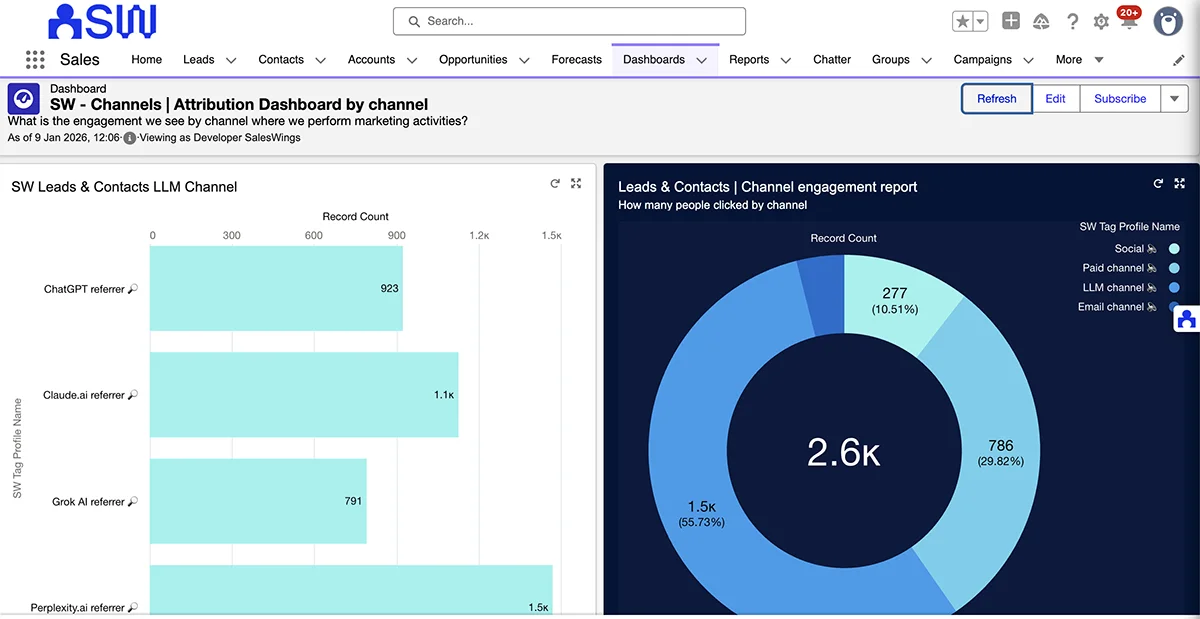
Decide your influence model first: Primary Campaign Source for simplicity, or a multi-touch model for more depth. Set guardrails such as time windows and required statuses, and document exactly which fields drive inclusion. Tracking marketing touchpoints with a dedicated third-party tool goes a long way here.
FAQ 12. How do I standardize picklists and fields for consistent filters?
Audit the fields you filter on most, such as Stage, Lead Source, and Segment. Lock them to picklists and migrate free text into them. Add validation rules at key transitions so bad values can’t slip back in.
FAQ 13. How do I use row-level and summary formulas safely?
Keep formula naming transparent, comment the logic in the report description, and avoid using formulas as a band-aid for underlying modeling issues.
FAQ 14. How do I use cross filters and subfilters?
Cross filters are great for isolating relationships, such as Accounts with Opportunities, but they can be slow, and they aren’t supported in joined reports (see notes).
FAQ 15. How do I use buckets without hiding data quality issues?
Document your bucket logic, and convert a bucket into a permanent field once it becomes business-critical. Don’t use buckets to mask messy source values, that just defers the cleanup.
FAQ 16. Tabular vs. Summary vs. Matrix, how do I choose?
Looking for a top-X list or a simple dashboard table? Use Tabular with a Row Limit. Need one grouping? Use Summary. Need a two-dimensional comparison? Use Matrix. Remember that only grouped reports support charts natively (docs).
Section 3: Implementation Process
FAQ 17. How do I gather requirements like a pro?
Meet with every stakeholder who has a real interest in the report you’re building, to make sure it will meet their needs. Capture KPI definitions from the team: the question, the grain, the audience, the refresh cadence, and the decision the metric informs. Sketch the widget itself (title, filters, groupings, number format) and validate sample outputs before you build it for real.
FAQ 18. How do I design source reports for each dashboard widget?
One widget should equal one source report. Keep filters and groupings limited to exactly what that widget shows. For tabular dashboard tables, set a Row Limit and configure the table fields (how-to). A strong practice is to use only one report type per dashboard, such as Leads, so you can set filters at the top of the dashboard itself.

FAQ 19. What’s a sensible governance model for reports and dashboards?
Use an intake process, a shared backlog, and a quarterly review. Assign an owner to each folder and dashboard. Restrict who can create shared reports; everyone else works in personal folders and requests promotion when a report is ready to share.
FAQ 20. How do I document filters, formulas, and owners?
Use the report description field for purpose and key filters. In dashboards, add subtitles with time windows and filters. Maintain a simple KPI-to-report-to-owner-to-cadence map; a shared spreadsheet works well for this kind of general knowledge retention.
FAQ 21. How do I incorporate marketing attribution insights into Salesforce reporting?
Layer in first-party behavioral and intent data: visit tags, scoring, and journey insights. Use the SalesWings reporting guide to filter and group by insight categories, tags, and scores, and build dedicated “handoff readiness” and “account engagement” views.
FAQ 22. How do I bring non-Salesforce data into my reports responsibly?
Whenever you adopt a new tool that holds relevant data, check whether a Salesforce integration already exists and study how it works. For small merges, use custom fields updated by Flow or scheduled imports. For heavier analytics, use CRM Analytics, Tableau, or a warehouse/BI stack, and label external metrics clearly so lineage stays traceable.
FAQ 23. What does a good QA plan look like before launch?
Build a test checklist covering run times, filter checks, totals against a known baseline, permission checks by role, and subscription validation. Keep screenshots of “golden outputs” so you have something to compare against later.
FAQ 24. How do I drive adoption across sales and marketing?
Launch with a short walkthrough, and schedule the report to hit inboxes right as teams start their day. Embed “how to use this” notes directly in dashboard subtitles. Revisit adoption monthly, and deprecate whatever isn’t being used.
Want your reports built on first-party intent data instead of guesswork?
See how SalesWings feeds real engagement and scoring signals straight into your Salesforce reports and dashboards.
Get a demoSection 4: Tools, Tech & Integrations
FAQ 25. Which tools extend Salesforce analytics, and when should I use them?
Use native Reports & Dashboards for day-to-day operational KPIs. Add CRM Analytics, Tableau, or a BI tool like Power BI or Looker for cross-object modeling and historical analysis, since they have direct access to native Salesforce data. Spreadsheet connectors help you explore large, 100k-row exports (overview).
FAQ 26. What hard platform limits should I design around?
Plan around 2,000 rows visible in the browser, exports of up to 100k rows / 100 columns, a Lightning Table cap of 200 rows / 10 columns, and the fact that joined reports can’t use bucket fields or cross filters (limits).
FAQ 27. How do I report on UTM attribution inside Salesforce?
Capture UTMs on Leads, Contacts, and Opportunities, and expose them through a Custom Report Type. See this practical guide, and pair UTMs with Primary Campaign Source for a simple baseline.
FAQ 28. How do I automate freshness and threshold alerts?
Use dashboard and report subscriptions on a daily, weekly, or monthly cadence, and set conditional notifications for thresholds such as “pipeline below target” (how-to).
FAQ 29. How do I build ABM views?
These reports typically combine account data such as segmentation or ICP fit to establish a first view. If you can also organize accounts by buyer intent, such as content topics and product interest, you can identify the segments best worth targeting. Filter dashboards by account, buying group, or segment to prioritize outreach.
FAQ 30. How do I fix data for reporting using Flow, Validation Rules, or Data Loader?
Add validation rules for must-have reporting fields, use Flow to auto-populate values, and run periodic Data Loader cleanups for legacy records. Always test in a sandbox first, and document who owns the resulting data.
Section 5: Measuring Success & ROI
FAQ 31. What KPIs prove that reporting is working?
Tracking usage, meaning views and subscriptions, is essential. Check in with your team on whether the report is actually adding value. For sales, track forecast accuracy against actuals. For marketing, track cost per qualified opportunity and conversion to pipeline by channel.
FAQ 32. How do I validate pipeline accuracy against actuals?
The key is logging your forecasts somewhere historically. Pair “this month forecast” against “this month actuals” by stage and owner, and compute the variance. Investigate outliers through activity reports and deal-slippage notes. Salesforce’s own Pipeline Inspection feature is worth using here too.
FAQ 33. How do I show marketing attribution ROI in Salesforce?
Several data points matter here. First, make sure every new lead has a “Lead Source” field set at form fill or import. Ideally you also ask “how did you hear about us?” on inbound forms, and have sales ask the same question. Digital engagement tracking lets you track omni-channel engagement and touchpoints so you can report on influence by campaign or source. Finally, build reports and dashboards that compare touchpoints against outcomes, typically lead conversion rate or opportunity win rate.
FAQ 34. What SLOs should I set for data freshness?
Common targets: daily refresh for exec dashboards by 08:00, hourly or end-of-day refresh for operational boards, and same-day cleanup of exceptions (docs).
FAQ 35. How do I create exception tests that catch data issues early?
Build reports that surface records missing key fields, inconsistent field combinations, or stale dates, such as an open opportunity with a close date in the past. Subscribe the owning team lead weekly, and close the data gaps over time, ideally with automation rather than manual cleanup.
FAQ 36. How do I A/B test dashboards and iterate with confidence?
This is an advanced technique, but a revealing one. Clone the dashboard, change one element, share it with a pilot group, and compare usage and decision quality against the original. Roll the change forward if adoption improves.
Section 6: Advanced Strategies & Best Practices
FAQ 37. How do I design for scale and performance?
Favor selective filters, such as date ranges and required picklists, over unbounded ranges. Keep joined reports off dashboards, and trim heavy formulas wherever you can.
FAQ 38. What are the safe ways to use joined reports?
Use joined reports to compare blocks side by side, but remember their limitations: no buckets and no cross filters. For dashboards, prefer separate summary source reports instead (reference).
FAQ 39. How do I build top-X “leaderboards” the right way?
Create a Tabular report, set a Row Limit such as 10, 25, or 50, sort by your measure, and configure the dashboard label and value fields correctly (how-to).
FAQ 40. How do I mitigate B2B data decay’s impact on reporting?
Plan for decay: refresh enrichment regularly, validate key fields, and automate updates from first-party behavioral data. Expect roughly 22.5% annual decay on contact and account records (SMARTe). First-party intent signals, the kind SalesWings captures, hold up better against this decay than purchased or inferred data.
Want your reports built on first-party intent data instead of guesswork?
See how SalesWings feeds real engagement and scoring signals straight into your Salesforce reports and dashboards.
Get a demoSee It in Action & Helpful SalesWings Reads
If you want a practical data operations walkthrough, watch our Toolbox demo for inspiration.
- Salesforce Reporting, Dashboards, and Analytics (SalesWings)
- Lead Scoring Guide for Salesforce Customers
- B2B Marketing Attribution Reporting for Salesforce
Author Bio

Philip Schweizer, SalesWings CEO and Head of Product. Philip is a co-founder at SalesWings, a martech platform that helps revenue teams understand buyer intent at every step of the funnel. His Salesforce reporting experience spans designing and building department-level dashboards and reports that measure marketing effectiveness, pipeline velocity, marketing attribution, and A/B testing.
