


The B2B Studio for Marketing Cloud Team here at SalesWings is happy to make you discover a great new app today. This new segmentation solution for Salesforce Marketing Cloud is called DESelect and is available on the Appexchange for Marketing Cloud. It caught our interest as indeed there aren’t all that many apps on the Salesforce app store yet around SFMC, so we wanted to test it for ourselves. In summary we’re happy to say, that this app will make your life a lot easier…
.
What is DESelect?
DESelect is a handy Salesforce Marketing Cloud app, which aims to make the lives of marketers easier by offering them a no-code segmentation solution.

.
Why do Marketing Cloud users need it?
One key activity of a data-driven marketer is to create highly targeted campaigns and sophisticated audiences, and this shouldn’t be hard. Creating a more complex segment and audience on the Marketing Cloud platform requires knowledge around writing SQL queries. When considering simple use cases, SQL seems to fulfil most segmentation needs. However, this approach may turn out to be cumbersome and not everyone gets excited writing SQL. Some teams aren’t prepared for SQL when they start with SFMC and realize they need to upskill their team or invest in outsourcing.
SQL related obstacles are one of a set of pain points which DESelect tackles through an intuitive drag-and-drop solution for SFMC. DESelect furthermore saves up to 50% of the time needed to create advanced segments, even for users who know SQL well.
.
How does DESelect work?
So let’s see what DESelect looks like on the inside. We’ll guide you through the segmentation process in Salesforce Marketing Cloud using DESelect.
In order to create a targeted campaign with information from various data extensions in DESelect, you start by creating a new “selection” (think of this as a segment, query, or rule set).

.
Step 1. Selection Criteria
To start, you will choose the data extensions (DEs) which you’d like to filter as data inputs. For instance, you may want to create a new segment of prospect contacts linked to their companies. Normally, in order to do that, you would rely on SQL to join the different DEs together. But with the drag-and-drop interface of DESelect, there is no need to write a SQL query for that.
Here’s how:
- Choose the DE you need from any DEs available within your business unit – DESelect will show all of these under “Available Data Extensions”. This list is constantly refreshed, ensuring you can use newly integrated data sources as well.
- Repeat this action for as many DEs as you’d like to add and drag-and-drop them on one another to define how they are related.
.

.
3. Choose the relationships between DEs: With/without matching, with matching, with all matching, or use exclusions.

.
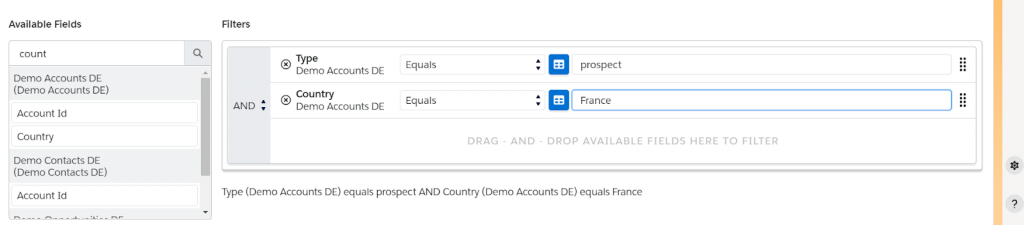
All the fields from the selected data extensions (DEs) are queried and placed in the ‘available fields’ section. You can select as many fields as you like to filter down your results by dragging and dropping them to the right. This will allow you to select from a vast array of filtering options, far beyond the out-of-the-box filtering options in SFMC.
In our example, we will filter the Accounts field ‘Type’ for the value “prospect”.
.
Step 2. Target audience definition using DESelect
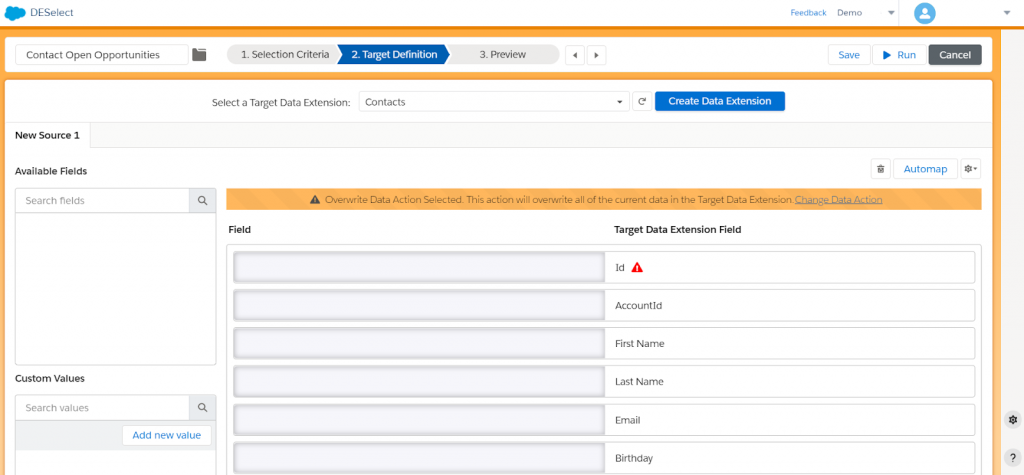
In this step, we need to choose our target data extension (DE). There are a few options at this point: we can create a DE on the fly or choose an existing DE to populate with data from our new selection.
.
- If you want to create a data extension through DESelect – which is straightforward – you simply select the fields that you want to have in your target segment.
- Drag-and-drop from the available fields on the left to your desired DE on the right (e.g. for this future campaign we need: Account Id, the Name of the Company, Type which equals Prospect, First and Last Name of the person linked to the company, and Email Address)
- Hit Create a Target DE
.

Step 3. Preview your data extension results
Before saving your new selection, you can preview the resulting data extension and how many records it would contain, to see if you want to add any changes.
- Hit Run Preview
- Check if the fields are populated correctly

Once you are happy with the preview, you can run your selection and it will automatically populate the target data extension in your SFMC. With that, you can instantly use the data extension for your next email campaign or journey in the journey builder.
.
Final thoughts about DESelect
DESelect offers an intuitive drag-and-drop alternative to SQL in Salesforce Marketing Cloud. It allows non-technical marketers to create advanced segments that can immediately be used for campaigns. It is a real time-saver that also minimizes manual mistakes while creating a new segment. We had a good time playing around with the solution and can definitely see the need for this amongst SFMC customers.
