


This article was updated on March 2, 2026 with an up-to-date FAQ section.
Generating and managing qualified leads becomes easier with the right email platform. Gmail understands. That’s what makes G-mail the #1 e-mail client.
Gmail is more than just an email account: it allows sales professionals to be more productive. For instance, it offers a vast number of plugins that enhance Gmail with productivity features such as the SalesWings website tracking and lead scoring add-on or Yesware to check if people are actually reading your emails, all of which can help boost sales productivity.
Productivity Tricks with Gmail
That’s cute how other email providers let you read and send messages. Gmail has progressed past the cute stage and into the adult world of work. With 10 Minute Email services, you can interact with websites and apps, and engage in online forums without revealing your true identity. And if your data is ever compromised, your primary email will be protected.
- Manage your calendar and to-do list
Stop scurrying for the pen and paper. Stop clicking over to another desktop application when you receive a new task. Just click the “Gmail” drop down menu and click “task.” You’ll see your to-do list, a list that Google automatically saves, which means as long as you have an internet connection, you’ll never lose your list. And by setting a deadline for a task, you can immediately add it to your calendar.

- Prioritize your inbox
You have enough to do without sifting through hundreds of emails that aren’t helping you achieve your sales goals or improve work efficiency. By choosing “Priority Inbox” from the Inbox setting tabs, Gmail will intelligently select which emails you consider most important. You can also teach Gmail to make it more effective.

- Get a professional address
You’ve worked hard to appear professional. Gmail lets you get an email address to complement the hard work. Customize your address by subscribing to Google Apps for Business. For a small subscription fee, you also receive access to video and voice conferencing, documents and spreadsheets, presentations, security and administration controls, and 30GB of cloud storage.

- Send prewritten responses to frequently asked questions
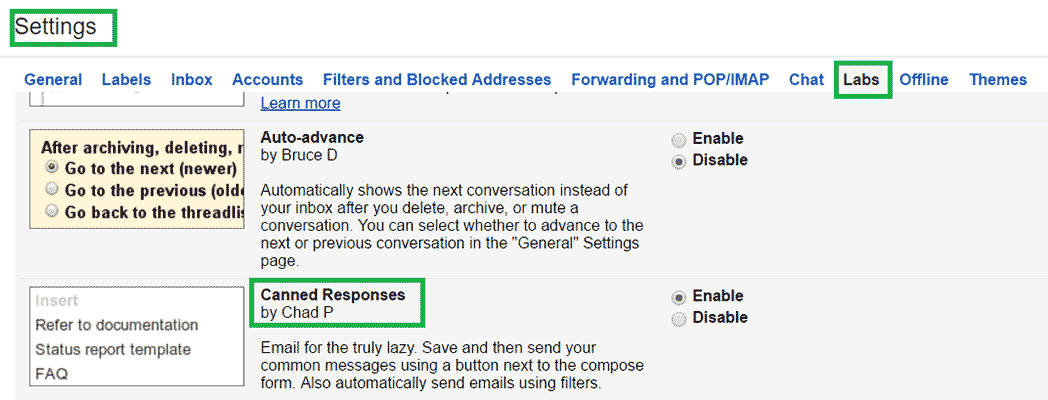
You don’t have time to craft original responses to every email. You certainly don’t have time to craft original responses to the same question. By enabling the canned response feature in settings, you can store prewritten messages and select it when you’re composing an email. It’s easy to set up. Just go to the “Labels” tab in settings.
- Integrate with Google Drive
You already know about integrating Google Calendar with Gmail, but there’s much more Google Tools integration than that. A deadline approaches and you need to send a large email file. This used to be a problem. Now you have Google Drive. All you need to do to send files of up to 10GB is click the Drive icon in the email compose window. Other integrative features of Google Drive include scheduling emails with Google Sheets, Gmail mail merge, and more.

Integrate with Third-Party Plugins.
Not even Google does everything. These third-party plugins integrate smoothly with Gmail.
- SalesWings
It’s simple. SalesWings simply shows you which leads are sales-ready. SalesWings makes sense out of lead activity with real-time notifications and prioritizing inbound leads.
- FullContact
This app lets you control your social, email, and mobile contacts from one dashboard. With Full Contact, you can unify contacts, sync contacts, sync multiple accounts, scan business cards, and more.
- Rapportive
Get detailed profiles of your email contacts and gain a deeper understanding of whom you are emailing instantly. Rapportive replaces the ads on your Gmail sidebar with detailed profile of the sender’s social profiles and their current work positions.
- Boomerang
No need to set an alarm to send emails at the right time. Boomerang lets you schedule emails to accommodate your work schedule, your leads’ work schedule, and different time zones. Boomerang also works as a reminder tool, so when you want to respond at an email 3 hours after you’ve read it, you won’t forget.
Switching to Gmail
You’ve probably come across a better app or a better service to replace a product you’re currently using only to discover that switching over would cause too much inconvenience to justify the switch. When it comes to changing your e-mail provider, Gmail makes the switch easy.
Sign up with G-mail, click on the settings icon, go to the accounts and import tab, and within minutes you’ll have all your mail and contacts. Within this same tab, you can set up your Gmail account to check and send mail from other accounts.
There’s a lot more to Gmail than you imagined. And this is just a small sample of what makes Gmail our #1 client email.
Frequently Asked Questions
- Why is Gmail productivity so strong for sales ops?
- How do I set Gmail as my default email client?
- How does Gmail productivity support better cold outreach?
- What Gmail plugins actually improve email productivity tools?
- How does Gmail productivity improve with Priority Inbox?
- How can Gmail productivity increase with templates (canned responses)?
- Which Gmail plugins help with Google Drive attachments?
- Can Gmail plugins help identify sales-ready leads?
- Does Gmail productivity improve when consolidating multiple inboxes?
Why is Gmail productivity so strong for sales ops?
Gmail productivity is strong because it combines fast search, smart prioritization, and workflow integrations in one interface.
For sales operations, the win is operational consistency: shared labels, standardized processes, and fewer “where did that email go?” moments. Gmail’s ecosystem (Calendar, Tasks, Drive, and Marketplace add-ons) reduces context switching, which is a hidden cost in pipeline hygiene and lead response SLAs. When you pair inbox rules with lightweight automation (filters, labels, templates), reps spend less time triaging and more time executing the next-best action.
Tip: document a default inbox setup (labels, filters, templates) and roll it out as part of onboarding.
How do I set Gmail as my default email client?
Gmail productivity improves when it’s your default email client, because mailto links open directly in Gmail instead of a desktop app.
This matters in sales workflows where reps click email links from CRM records, lead lists, meeting notes, or web forms all day. The most common setup is enabling Gmail handling in Chrome so “mailto:” actions route to Gmail automatically, reducing mis-sends and duplicate drafts.
Tip: Use this step-by-step guide to set Gmail as the default email client in Chrome.
How does Gmail productivity support better cold outreach?
Gmail productivity supports better cold outreach by enabling faster personalization, consistent follow-ups, and cleaner process adherence at scale.
Sales ops can improve outcomes by standardizing templates, spacing follow-ups, and enforcing deliverability-safe habits (like avoiding overly “salesy” formatting and keeping messaging relevant). Gmail becomes even more effective when you pair it with a repeatable cold email workflow that defines targeting, messaging angles, and qualification steps so reps aren’t improvising in every thread.
Tip: Use this guide to turn cold SaaS emails into hotter sales conversations.
What Gmail plugins actually improve email productivity tools?
Gmail plugins improve email productivity tools when they remove manual steps like tracking engagement, updating CRM fields, or scheduling follow-ups.
Look for add-ons that sit inside the Gmail compose or read view, so reps don’t bounce between tabs to complete routine actions. In sales ops, the best plugins are the ones that standardize execution: consistent follow-up timing, consistent logging, and consistent qualification signals. Also evaluate admin controls (permissions, security reviews, and account-wide deployment) so the “helpful tool” doesn’t become a support burden.
Tip: pilot two or three plugins with a small group and measure reply rates, time-to-first-follow-up, and logging completeness.
How does Gmail productivity improve with Priority Inbox?
Gmail productivity improves with Priority Inbox by automatically separating important messages so reps act faster on revenue-impacting emails.
Priority Inbox typically surfaces “important and unread” messages alongside starred items, reducing the chance that hot replies get buried under newsletters or internal noise. Sales ops can standardize triage by defining a simple playbook: star customer replies, apply a “Needs Action” label, and route system alerts into separate sections with filters. This makes coaching and auditing easier because the workflow is repeatable.
Tip: pair Priority Inbox with a small set of label conventions (e.g., “Prospect Reply,” “Customer,” “Internal”) to reduce ambiguity.
How can Gmail productivity increase with templates (canned responses)?
Gmail productivity increases with templates by letting reps reuse proven replies without rewriting common answers from scratch.
This is especially useful for qualification questions, pricing FAQs, meeting scheduling, and “bump” follow-ups—areas where consistency matters as much as speed. Sales ops can create a small, approved library of templates that match stages (new inbound, no-show, procurement, security review) and include compliant language. Keep templates short and modular so reps can personalize the first line and one relevant detail.
Tip: review template usage quarterly and retire anything that no longer matches your ICP, offer, or positioning.
Which Gmail plugins help with Google Drive attachments?
Gmail plugins and built-in Drive features help by sending large files as Drive links while keeping permissions and version control manageable.
For sales ops, this reduces deal friction: reps can share updated collateral without re-sending attachments, and recipients always access the latest version. It also improves governance; Drive permissions and link settings are easier to audit than scattered attachment copies. If your team uses enablement content, consider a standard folder structure and naming convention so reps can reliably find the right deck or one-pager.
Tip: create “approved sharing” settings (view-only by default) to avoid accidental edits and reduce support tickets.
Can Gmail plugins help identify sales-ready leads?
Gmail plugins can help identify sales-ready leads by surfacing engagement and intent signals that inform prioritization and follow-up timing.
For sales ops, the key is turning “activity noise” into an operational signal: who should be called now, who needs nurturing, and who is stalling. Plugins that combine email engagement with web activity and lead scoring can make routing rules and SLA enforcement more objective. To avoid tool sprawl, define a single source of truth for qualification (i.e. a scoring threshold or intent tier) and ensure reps see it where they work inside Gmail.
Tip: align scoring thresholds with stage definitions so handoffs stay consistent across SDR and AE teams.
Does Gmail productivity improve when consolidating multiple inboxes?
Gmail productivity can improve with consolidation, but the best approach depends on whether you need true syncing or just unified workflows.
Many teams consolidate to reduce context switching and ensure follow-ups don’t fall through the cracks. However, Google has announced that some legacy methods for pulling other accounts into Gmail (like POP fetching) are being discontinued in 2026, so sales ops should plan for alternatives such as IMAP in the Gmail mobile apps, forwarding rules, or using a desktop client for multi-account workflows.
Tip: map your “multi-inbox” requirements (visibility, sending-as, archival, compliance) before choosing a consolidation method so you don’t break reporting.
We thought you might be interested in this article…
> How to Set Gmail as the Default Email Client in Chrome: Simple Menu Function
